v4 Factoid / Quick Link
Factoid is similar to an infographic and can also act as a link with an uploaded image of your choosing.
In Hydraulic v5, Icon Card, Image Card, or Statistic Card have similar styles to this component.
- Section Title (required) - Enter a short title to give to the paragraph
- Published (optional) - Select or unselect to make paragraph visible or not to site visitors. Defaults to published
- Columns (required) - Select the number of columns (1-4) to use before wrapping items
- Item Shape (required) - Choose the shape of the factoid/quicklink to use when displaying the component
- None
- Square
- Circle
- Item (required)
- Published (optional) - Select or unselect to make paragraph visible or not to site visitors. Defaults to published
- Title - Give the box a title that will help identify the component. This also doubles as an anchor link for the section when using the Current Page Section Menu on Basic Pages
- Body - Short description that helps further explain the section
- Media (optional)
- Icon - Ability to add an icon for the box
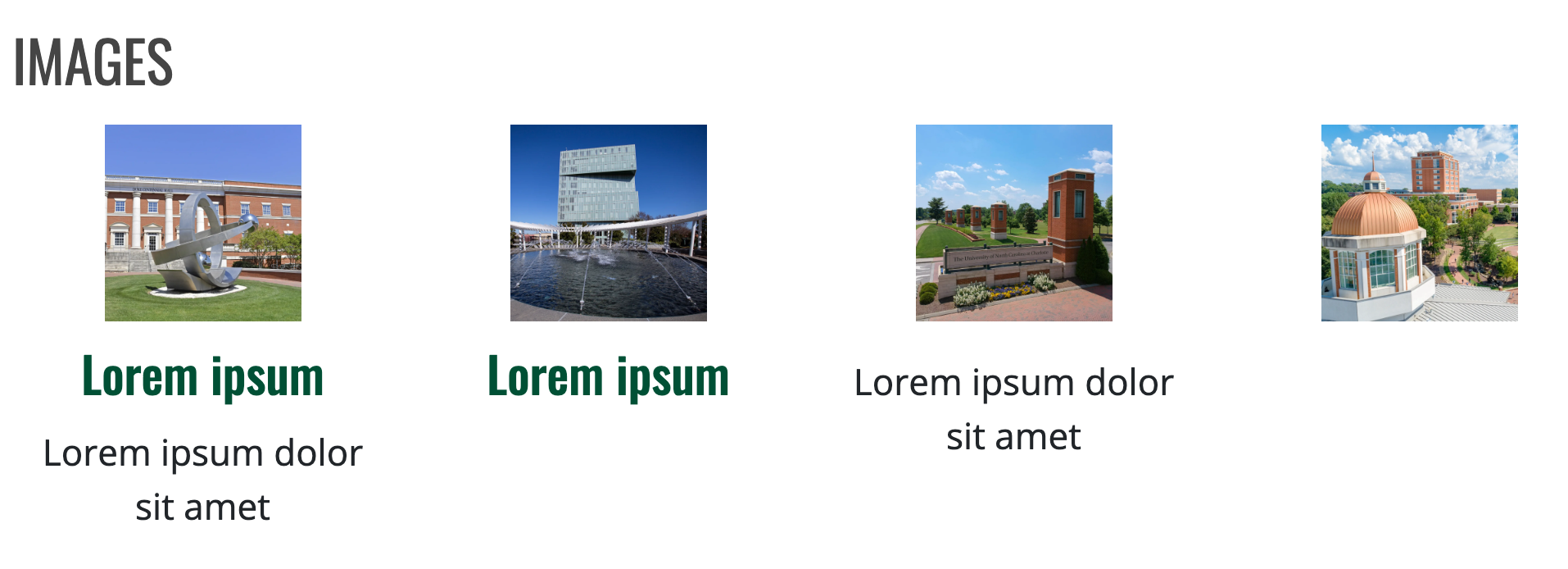
- Image - Ability to add an image for the box
- Additional Options (optional)
- URL / Link text - Identify where the button should take visitors and what the button should say
Instructions start on the Create or Edit Page within a piece of content.
- Create Content using the Add Paragraph button
- Choose Factoid / Quick Link from the list of Component in the Mixed section
OR
Edit Content using the Edit button - (optional) Section Title allows for a title to be given to the entire section
- Switch the Published field on or off for the component to be published or unpublished
- (required) Enter the number of Columns (1-4) that should be displayed before a new row.
- (required) Choose the Item Shape of the boxes for the component
- None, Circle, Square
Item
- Switch the Published field on or off for the component to be published or unpublished
- (optional) Set a Title for the Box
- Give the Body some word to display inside the Box
Media (optional)
- Search for an Icon from FontAwesome
OR
Choose an Image by clicking Add media
Additional Options (optional)
- Link fields will change the Factoid / Quick Link into a link to another resource.
- Click Add Item to add more items
- Repeat steps 8-13 until desired number of Items has been reached
- Return to step 2 to add more or edit existing Paragraphs
- Click Save