Person
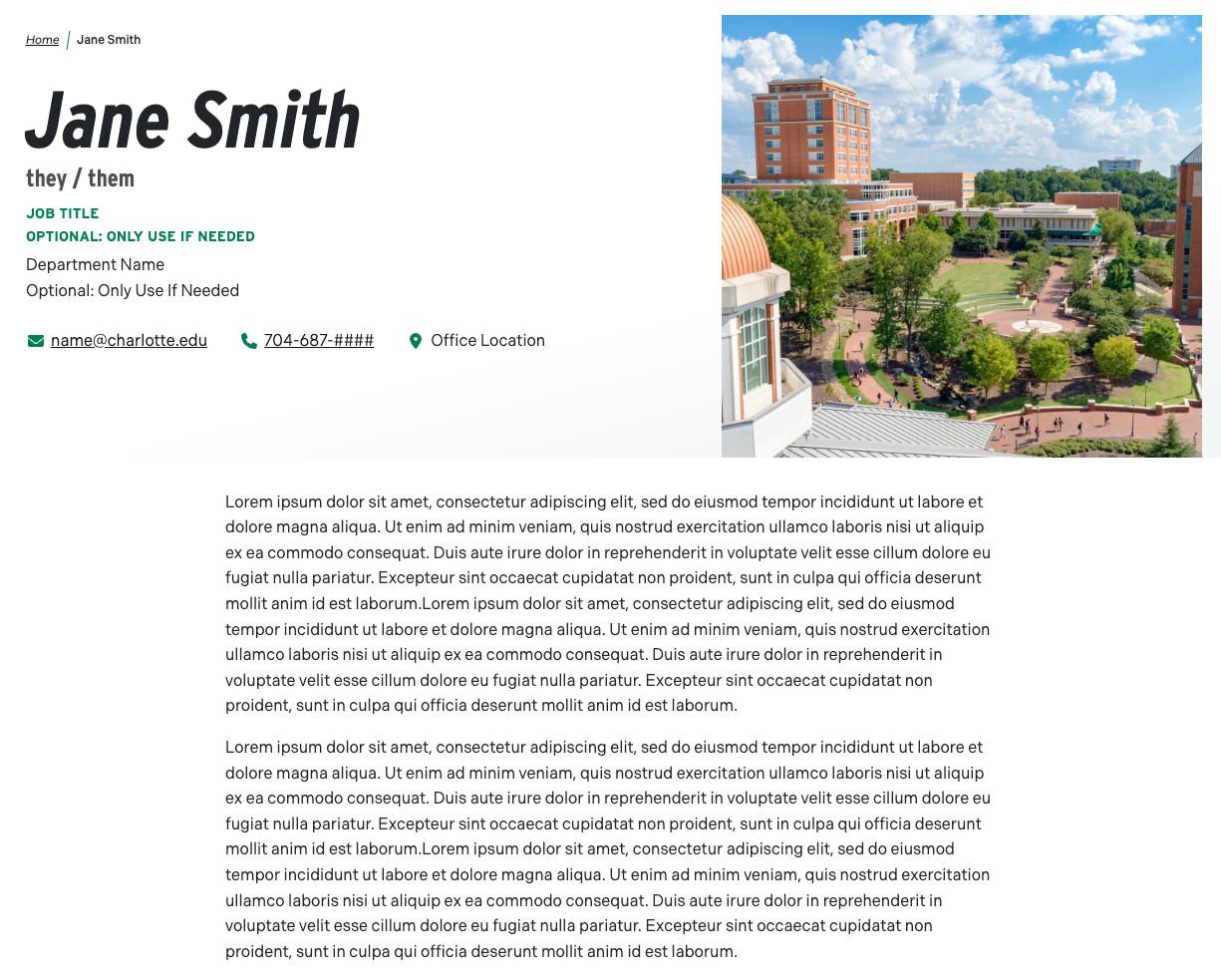
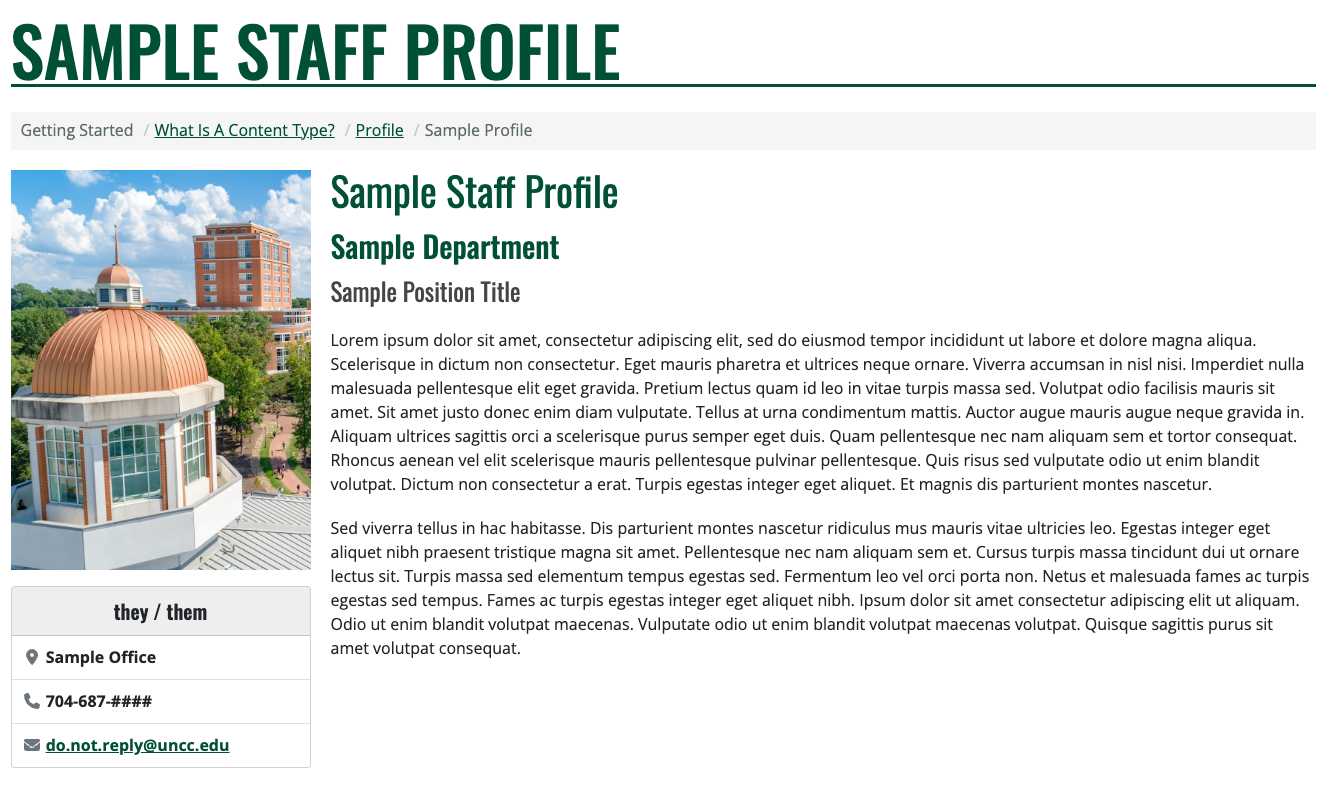
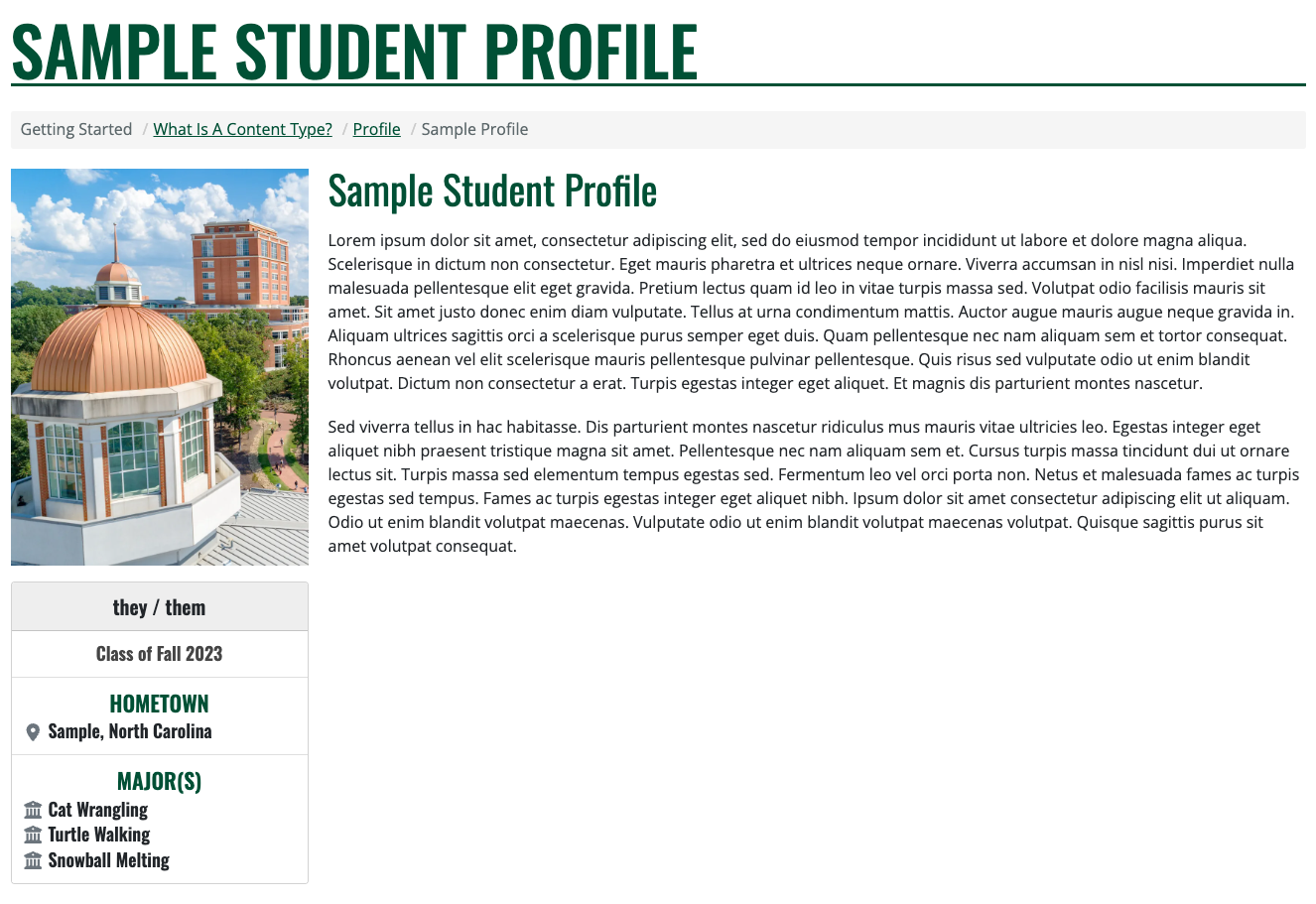
The Person content type is generally used for highlighting information about an individual, department, or organization. This could include students, staff, faculty, or individual groups of importance.
If the title is left blank, the First Name and Last Name fields will be used to create a title. First name and last name fields are not displayed on the Profile page and only used for sorting purposes.
- Title (optional) - Text entered will be used at the title of the content, included in the breadcrumbs, and become the content’s URL unless otherwise configured. If left blank, First Name and Last Name will be used to create a title.
- First Name (optional) - Ability to designate the first name. Used for sorting purposes.
- Last Name (optional) - Ability to designate the last name. Used for sorting purposes.
- Pronouns (optional) - Ability to designate what pronouns the individual uses.
- Profile Picture (optional) - Provide a representative picture of the individual.
Staff Information
- Department (optional) - Provide up to two departments to display for the person.
- Job Title (optional) - Provide up to two job titles to display for the person.
- Email Address (optional)
- Phone Number (optional)
- Office Location (optional) - Should be the office number or build, not a mailing address.
v4 Student Information
- Class of (optional) - Provide a year or semester and year to display for the profile.
- Hometown (optional) - Provide a city, state, or country to display for the profile.
- Major(s) (optional) - Provide up to three majors to display for the profile.
Grouping
Provides the ability to categorize the person, allowing the user to filter by category or to only display certain people in certain views.
- Log in to the site as an editor or user with the appropriate permissions.
- Use the toolbar to click on the Create or Content button
- Create button will provide a list of content types to choose from
- From the list, select Person
- Content button will show you a listing of all content already created
- Click on the + Add content button
- From the list, select Person
- Create button will provide a list of content types to choose from
- Enter a title for the person in the Title field
- Fill in the other fields as desired
- When you are finished, click the Save button to save the person
Additional field options
- Provides real-time analysis of the Search Engine Optimization (SEO) for your content
- Ability to add the content to a menu structure
- Ability to control the order in which content shows in pre-built lists
- Ability to schedule content to be published or unpublished on a specific day and time
- Generate or create your own URL to the content
- Ability to add additional URLs that will take users to this content